
The ‘Phone Requires Service’ message in modern vehicles can be a frustrating yet common issue that disrupts the seamless integration of smartphones with car infotainment systems. This guide is designed to provide car owners, used car buyers, and small business fleet operators with practical, step-by-step solutions to rectify connectivity problems. By delving into the technical aspects and compatibility concerns, this article aims to equip you with the knowledge needed to restore full functionality, enhancing your driving experience without the hassle of frequent repairs.
Practical Steps to Fix a ‘Phone Requires Service’ Warning and Restore Mobile Integration
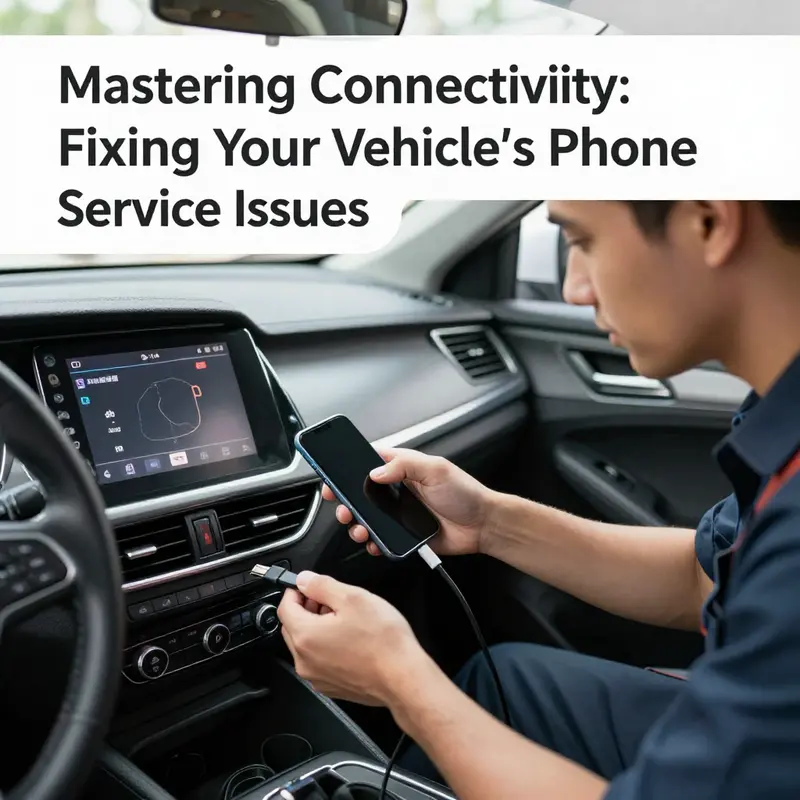
Resolving the “Phone Requires Service” Warning: A Practical, Step-by-Step Walkthrough
When a vehicle reports that the phone “requires service,” the message usually points to a break in the link between your mobile device and the vehicle’s infotainment or connected-services platform. This warning is rarely a hardware failure; most often it signals a registration, configuration, or software mismatch that prevents the car from recognizing or authorizing the phone for in-vehicle features. The guidance below describes a single, unified troubleshooting flow that moves from the quickest fixes to deeper diagnostics you can do at home, then to dealer-level checks if necessary. Follow these steps in order to minimize work and maximize the chance of a fast resolution.
Start by treating the phone as the most likely source of the problem. Modern phones receive frequent software updates and sometimes introduce changes that affect wireless and wired connections. Ensure the phone’s operating system is updated to the latest stable release available for your model. After updating, restart the device. This simple action clears temporary configuration errors and reloads network services. If the phone is already up to date, rebooting still refreshes background services that manage Bluetooth, USB, and mobile data.
If you have access to a different phone, attempt to connect it to your vehicle. If that phone connects successfully, the issue is very likely isolated to your primary device. If the same warning appears with another phone, the problem may be with the vehicle’s software, a blocked account, or a registration problem on the vehicle’s connected-services platform.
Next, confirm that the required phone-side features are enabled. Many phones provide a set of permissions and connection preferences specifically for car integration. On Android-based devices, check the connected-devices or car-connection section of settings and ensure the phone-side interface is allowed and active. On iOS-based devices, confirm that the vehicle connection feature is enabled and not restricted by any screen-time or privacy settings. Also validate that Bluetooth is on and granted the required permissions for contacts and notifications if your setup relies on wireless pairing.
Examine the vehicle-side settings at the same time. Access the infotainment system settings that govern connected services and phone integration. Confirm the phone connection option is not disabled and that the system isn’t set to restrict new pairings. If the vehicle offers a user-level profile, ensure the profile associated with the key or the driver seat is configured to allow phone integration. Some vehicles maintain separate authorizations for different user profiles, and the service can appear unavailable if the active profile lacks permission.
If basic settings are correct, remove and re-create the pairing. For Bluetooth pairings, go to the phone list within the vehicle’s Bluetooth menu and delete the existing record for your phone. On the phone, forget the vehicle in the Bluetooth settings. Then restart both devices and re-pair from a clean state. For USB connections, start by unplugging the cable and inspecting both the cable and the vehicle’s port. Use compressed air to remove dust and debris from the port. Replace the cable with a high-quality, certified cable—preferably the original manufacturer cable or a certified substitute. Avoid using charging-only cables or multiport hubs; they can interfere with data transfer and authentication.
When using a USB connection, set the phone’s USB mode correctly. Some phones present USB mode choices when connected: choose a mode that allows data transfer rather than one intended only for charging. Certain vehicles require a specific USB mode to recognize a device properly, and selecting a non-data mode can trigger the service warning. If you cannot find a USB mode selection, consult your phone’s quick settings or developer options to verify that the device is exposing a data connection to the vehicle.
If re-pairing and USB checks do not help, clear the connection data on the phone. Many phones and mobile-integration apps store a local profile and cached credentials. Deleting this data and allowing it to be recreated often fixes corrupt or outdated profiles. On the phone, navigate to the app or system area that handles vehicle connections and clear cache and data. After clearing, re-enable the connection feature and re-initiate pairing.
At times, third-party apps or aggressive battery-management tools interfere with the persistent background services the vehicle relies on. If you run battery-saver or firewall-style apps, temporarily disable them while testing the connection. Also avoid developer flags such as USB debugging unless you have a specific reason to use them, as they can alter how the phone negotiates a connection.
If the phone itself appears healthy but the message remains, investigate whether the vehicle’s connected-service package is activated and properly registered. Many manufacturers require activation through either a dealer, an online portal, or a dedicated app linked to the vehicle identification number. If the vehicle was recently purchased used, or if the connected-service subscription lapsed, the vehicle may need re-registration on the service backend. In these cases, contact the dealership or the service portal listed on your vehicle paperwork. Ask the representative to verify whether the vehicle’s connected services are active and whether the phone needs a fresh registration.
Before visiting a service center, perform a system reset of the infotainment system if such an option is available and you are comfortable doing so. Power-cycling the vehicle and holding the start button or following the system reset procedure will reload the infotainment software and clear transient issues. Keep in mind that a system reset may erase user preferences such as radio presets and stored navigation data, so back up anything important first. After the reset, reattempt pairing and observe whether the warning clears.
If the problem persists after a system reset, it is time for professional diagnostics. When you contact the dealership or authorized service center, provide a clear timeline of the troubleshooting steps you’ve already completed: phone OS updates, cable swap, clearing connection data, USB mode checks, and system resets. Technicians can access the vehicle’s backend registration and check for common problems such as a mismatched VIN registration, expired subscriptions, or a corrupt service profile on the server. They can also apply firmware updates to the vehicle’s infotainment, which often resolve compatibility issues introduced by phone OS updates.
Technicians may perform a deeper reset at the central-computer level or re-register the mobile profile on the backend system. These actions can restore service without replacing hardware. If a software update is required, the service center can either push the update or guide you through a recommended process. Keep in mind that some updates and registration changes require proof of ownership and authorization to protect vehicle security.
Throughout this flow, document what you try and the results. Record which phone model and OS version you used, what cable you tried, and whether the vehicle produced any error codes. If the issue is intermittent, note the conditions that correlate with failure—temperature, particular USB port used, or whether the problem occurs only after vehicle sleep or battery disconnects. Detailed notes help technicians reproduce the issue and identify patterns that point to specific causes.
If you need to visit a service center, prepare by gathering account credentials for the vehicle’s online portal and any app associated with your connected services. If the vehicle uses an owner account to enable phone integration, having access to that account accelerates the verification process. If the vehicle is linked to an account that no longer belongs to you, the service team can advise on transfer or reactivation steps.
In parallel with dealer diagnostics, consider simple hardware checks that could reveal overlooked problems. Swap the USB port used for connection; some vehicles provide multiple ports and only one may be wired for data. Try different ports and different cables. Inspect the phone’s physical connector for bent pins or accumulated debris. Check for moisture warnings on the phone that could prevent data transfer. If you rely on wireless connectivity, ensure the vehicle’s antenna and the phone’s wireless radios are unblocked and operating normally.
Remember that many “requires service” warnings are resolved by activation or registration issues rather than hardware replacement. If the service team confirms server-side or registration problems, they will typically re-register the phone or vehicle, enroll required services, and confirm functionality before closing the case. Keep the contact details and case reference for follow-up if the problem recurs.
For ongoing prevention, maintain both phone and vehicle software at recommended levels and avoid unauthorized or uncertified accessories. Avoid unnecessary developer options and aggressive background-task managers on your phone. When you change phones, plan for a brief re-registration step with the vehicle’s connected services. Finally, if you maintain a vehicle-support account or app, keep its credentials accurate and ensure the account remains linked to the correct VIN.
If you want more general maintenance guidance beyond phone connectivity—covering routine inspections and service intervals that help keep vehicle systems stable—refer to the vehicle maintenance blog for short, practical posts on related topics: https://kmzvehiclecenter.com/blog/.
For specialist support, consult the official customer support portal linked in the vehicle’s owner materials or available through the service team: https://www.mercedes-benz.com/en/support/contact-us
By following this ordered, disciplined approach you eliminate simple causes first and escalate only when necessary. Most “phone requires service” messages clear after verifying app and connection settings, repairing or replacing a poor cable, clearing cached data, and confirming the vehicle’s connected-services activation. When those steps fail, a proven reset or a dealer-side re-registration typically restores full functionality without the need for hardware replacement.
Resolving the ‘Phone Requires Service’ Warning: A Practical Technical Roadmap
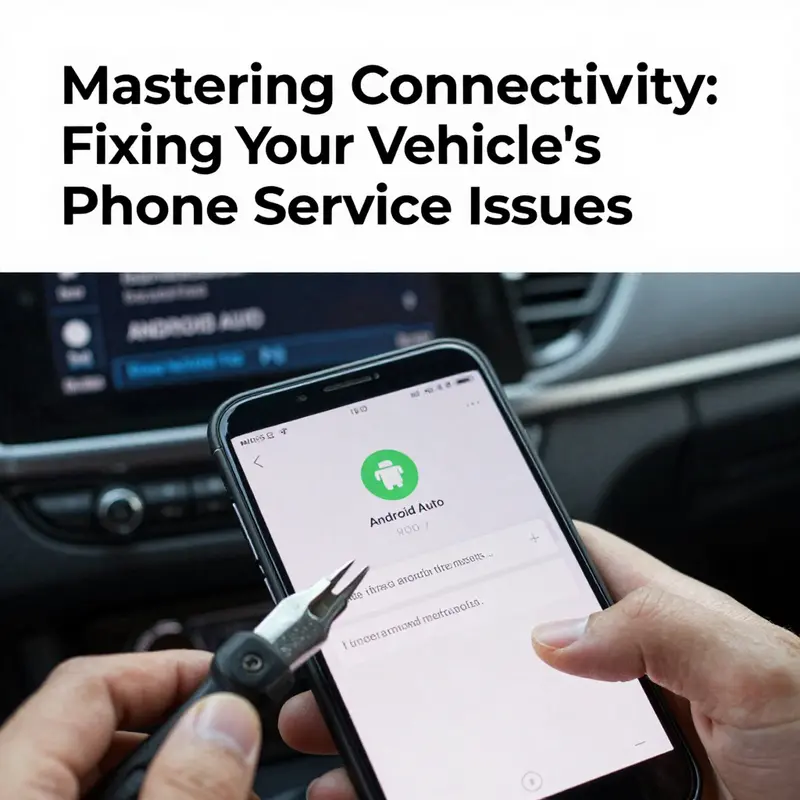
Resolving the ‘Phone Requires Service’ Warning: A Practical Technical Roadmap
When a vehicle displays a “Phone Requires Service” message, it signals a breakdown in the handshake between the vehicle’s infotainment environment and the connected smartphone. This chapter walks through the technical logic behind that message, explains the most reliable fixes in plain terms, and outlines a careful troubleshooting flow you can apply step by step. The aim is to give you a single, coherent strategy that reduces guesswork, minimizes downtime, and prevents repeat occurrences.
Start by thinking of the vehicle and the phone as two systems that must agree on a protocol, permissions, and transport. If either side has outdated software, corrupted temporary data, misconfigured permissions, or a flaky physical connection, the two systems cannot establish or maintain the secure channels needed for hands-free calling, media, navigation, or remote services. This warning is often a symptom, not the root cause—so a methodical approach that checks software, connection, and configuration in sequence yields the best results.
Begin with the simplest and most impactful checks: software currency and a full restart. Modern infotainment stacks and mobile operating systems change frequently, and compatibility depends on both sides running supported versions. On the phone, install any pending system updates and update the vehicle’s infotainment software when an update is available; many manufacturers offer over-the-air updates or downloadable firmware. After updating, perform a full restart of both the phone and the vehicle’s onboard system. A restart clears transient software states and often resolves issues caused by crashed services or stalled background tasks.
If the message persists after updates and restarts, shift focus to the physical and transport layer. When a USB connection is in use, the cable and port matter. Use a certified data-capable cable and avoid short, damaged, or charging-only cords. Plug directly into the vehicle’s factory USB ports, not into aftermarket hubs or chargers. Some vehicles require the phone to present a specific USB mode for data exchange, so set the phone’s USB mode to enable data transfer rather than only charging. If a wired connection isn’t the issue or if you typically use a wireless connection, inspect the Bluetooth or wireless link: remove the phone from the vehicle’s paired devices list, switch Bluetooth off on both devices for a moment, then re-pair from scratch. A fresh pairing re-establishes secure keys and clears pairing-related corruption.
Next, examine permissions and app behavior on the phone. The infotainment system requires certain permissions to access contacts, media, and background activity. On your phone, confirm the app or integration layer has been granted the necessary permissions, including access to contacts, microphone, and background data. Disable any battery optimization or background-restriction settings that might suspend the integration service. If the phone employs a privacy or firewall app that restricts network access for certain services, temporarily disable it to test whether the restriction is the source of the problem.
Clearing cached data and resetting networking components often resolves stubborn errors. On the phone, reset the network settings to clear stale Bluetooth pairings, saved Wi‑Fi profiles, and other cached network states. This forces a complete reinitialization of the phone’s networking stack, removing corrupted entries that can block reconnection. If your phone allows it, clear the cache and stored data for the vehicle integration app or service. On the vehicle side, many infotainment systems maintain their own cache and paired device records. Use the system’s menu to forget old phones, clear stored profiles, or perform a soft system reset if available. These actions remove corrupted entries and allow the systems to negotiate fresh profiles.
If resetting network settings and clearing caches does not restore service, expand the diagnostics to include the vehicle’s onboard software status and cloud-dependent services. Some features depend on the manufacturer’s cloud services for authentication, location, or service registration. If the cloud service is unavailable or if the vehicle has lost its registration to that service, the phone integration layer may enter a protective state and show the warning. Check the manufacturer’s service status page for reported outages and confirm the vehicle’s connectivity to cellular or Wi‑Fi services if applicable. If cloud services are down, the message can persist until the provider resolves the outage or until the vehicle re-authenticates.
When the error remains after all software and network steps, consider the possibility of corrupted registration or profile data inside the infotainment unit itself. Many dealerships and service centers can access deeper diagnostics, re-register the vehicle’s mobile service account, and perform a firmware refresh that is not available to vehicle owners. If a professional diagnosis is required, prepare these items before your appointment: the vehicle identification number (VIN), the phone’s model and operating system version, a description of the exact message and when it appears, and the steps you’ve already taken. This information speeds the service process and helps the technician narrow the fault to either a software module or a communication failure.
A methodical troubleshooting workflow reduces unnecessary parts replacements and saves time. Follow these practical steps in order: update and restart both devices; verify and, if needed, re-pair or reconnect via USB with a certified cable; reset network settings and clear caches; verify permissions and background app behavior; and check for cloud or backend service outages. If the problem persists, schedule a diagnostic appointment with the manufacturer’s service team and provide the VIN and detailed notes on the troubleshooting steps already completed.
There are also less obvious culprits to consider during troubleshooting. Hardware wear and contamination can degrade USB port contacts; inspect ports for debris or bent pins and test other ports if your vehicle provides them. Electrical anomalies, such as a low-voltage condition or an interrupted accessory power feed, can cause subsystems to restart or fail to maintain connections. If the vehicle shows other electrical oddities—flickering displays, intermittent accessory power, or warning lamps—have the vehicle’s electrical system assessed during the service visit.
Security contexts and authentication tokens can also lead to a repeated “Phone Requires Service” message. Integration systems frequently use long‑lived tokens or certificates to authenticate a phone or an owner account. If the token has expired or the vehicle’s internal clock is incorrect, authentication may fail. Confirm that the vehicle’s date and time are accurate and that any owner-account credentials used by the vehicle are current and completed. If you recently changed account passwords or reset your phone to factory settings, re-establish the vehicle connection using fresh authentication steps.
For users who rely heavily on wireless connections, interference can be an underappreciated factor. Nearby Wi‑Fi networks, USB chargers with noisy electronics, and even other Bluetooth devices can disrupt stable communication. When testing, isolate the vehicle in a low-interference environment if possible: move away from crowded wireless environments and unplug unnecessary peripherals. Test the connection with the phone in airplane mode with Bluetooth enabled to avoid cellular network noise when appropriate.
When replacing cables, remember that not all cables are created equal. Some cheap cables present intermittent data-contact issues that manifest as sporadic service loss. Use manufacturer-recommended or certified cables and avoid cables that are frayed, kinked, or unusually short or long. If you need to test with a different phone to isolate the fault, bring a second, known-good phone to see if it connects consistently. If a second phone connects without error, the problem is most likely on the original phone rather than the vehicle.
Documentation and a careful testing routine matter when the problem recurs. Keep a short log that records the occurrence of the message: date, time, what connection method was used (wired or wireless), what phone model and OS version, and any recent changes to phone settings or vehicle software. This log helps service technicians identify patterns linked to updates or specific network conditions.
Long-term prevention focuses on disciplined updates, clean pairing routines, and using quality accessories. Enable automatic updates for both phone and vehicle software if available. Periodically remove old device profiles from the vehicle and re-pair only active phones. Use certified cables and avoid third-party hubs. Finally, resist enabling aggressive battery optimization settings on your phone for the vehicle integration app; letting the app run in the background is necessary to maintain a stable connection.
If you reach a point where a service visit is required, a targeted request often saves time. Ask the technician to run a diagnostic scan on the infotainment module and to check for stored error logs related to phone connection attempts. Request that they refresh the vehicle’s mobile services registration if the logs indicate authentication or registration failures. If the technician finds a firmware patch or a module replacement is necessary, a firmware refresh or module re-flash will often restore expected behavior without hardware replacement.
Finally, keep your reference materials handy. A central resource for vehicle owners can speed basic troubleshooting and provide model-specific instructions for soft resets, paired-device deletion, and permitted USB modes. For additional reading and manufacturer-level guidance, consult the official integration support pages for your vehicle or phone provider. If you want a single place to bookmark ongoing vehicle maintenance and troubleshooting tips, visit the vehicle maintenance hub for owner-focused guidance.
When you follow this roadmap, you convert a vague message into a series of testable hypotheses: software currency, transport integrity, permission and background behavior, cloud registration, and hardware integrity. Tackle them in that order to narrow the fault quickly. Most occurrences resolve before the need for a parts replacement or extensive shop time. When the issue does require a technician, your targeted diagnostic notes and a clean reproduction of the problem often cut the service time and reduce cost.
External troubleshooting resources can also help confirm whether the issue is widespread. If you suspect the vehicle’s cloud service or backend is at fault, check the manufacturer’s service status page for any ongoing outages, which can explain service interruptions that otherwise appear as local faults. For direct step-by-step instructions and model-specific diagnostics, refer to the manufacturer’s troubleshooting pages available online. The following link leads to a technical support status resource referenced during diagnostics: https://support.google.com/androidauto
For further hands-on maintenance and broader vehicle care guidance, consult the vehicle maintenance hub for owner-focused guides and maintenance tips.
Applying this roadmap transforms an opaque warning into a predictable troubleshooting sequence. With disciplined steps—update, restart, re-pair, reset networking, clear caches, confirm permissions, and escalate to dealership diagnostics when needed—you can resolve most occurrences of the “Phone Requires Service” message with confidence and minimal interruption.
null
null
Final thoughts
Resolving the ‘Phone Requires Service’ message is a vital step to ensuring that your vehicle’s infotainment system functions optimally, allowing you to enjoy seamless access to your smartphone’s features while on the road. By following the comprehensive steps outlined in this guide, you can effectively diagnose and rectify common connectivity issues. Understanding the technical insights and compatibility aspects helps you make informed decisions about your devices and their interactions with your vehicle. Empower yourself with this knowledge to maintain a smooth and enjoyable driving experience, free from connectivity interruptions.